
Many situations—such as a damaged or corrupted company file or a failure to access its data—may require restoring QuickBooks company files. To recover lost or corrupted data in the QBW file, QuickBooks provides options like Open or Restore Company and Auto Data Recovery. However, sometimes while restoring the company file from a backup, the operation fails with QuickBooks “Restore Failed” errors, such as: Error: Restore failed. Can’t remove file Error: Restore failed. This is an invalid format of a post–QuickBooks 2007 backup file, and others. There are many possible causes for such errors. Read this comprehensive post to learn how to resolve them.
Causes of the QuickBooks “Restore failed” errors
The backup restore failed error can occur due to the following reasons:
- The backup file was restored over an existing QBW file.
- The company file is corrupted.
- The company file name contains special characters like (<>! $/)
- You’re trying to restore the incorrect backup file.
- Some important components from the backup file are missing.
- The backup file is not compatible with the current version of your QuickBooks file.
- The folder where your backup file is kept is not accessible to you.
- The backup file is less than 6 MB in size.
Solutions to resolve QuickBooks ‘Restore Failed’ Error
You may encounter the Restore Failed error in QuickBooks if the name of the company file contains special characters. Locate the company file folder, find the file, and check its name. If it contains special characters, right-click and rename it. Backup restoration may fail if the file you’re trying to restore is already exists, so ensure the .QBB file you’re restoring has a unique name. If these basic troubleshooting methods didn’t work, follow the solutions given below:
Solution 1-Check the size and location of the backup file.
The Restore failed error can occur if the size of the company file is less than 6MB. To check it, right-click on the file and click Properties. If the error has occurred due to the corruption in the backup file folder, then try moving the file to a new folder at a different location on your system.
Solution 2- Check the Version of QuickBooks Company File
You can see the backup restore-related errors in QuickBooks if the version of the QuickBooks application does not support the backup file you’re trying to restore. You can check the version of the backup file through the QuickBooks File Manager. This stores the QuickBooks-based files according to the type and version. To open the QuickBooks File Manager, go to the Programs, click QuickBooks >File Manager.
Repair your Company file
If the backup restore fails due to corruption in QBW file, then you can refer the Intuit document to get the help to fix company file issues using QuickBooks File Doctor. This tool can help you resolve minor to moderate-level corrupted QuickBooks company files. Sometimes, QuickBooks file doctor also stopped working or may not provide the expected results if the file is severely corrupted or large-sized. Alternatively, you can repair the corrupt QuickBooks company file by using the Verify and Rebuild Data tool. To use this tool, follow the steps below:
- First, close all the active windows on your system.
- Next, open your QuickBooks and click the File
- Click Utilities and then choose Verify Data.
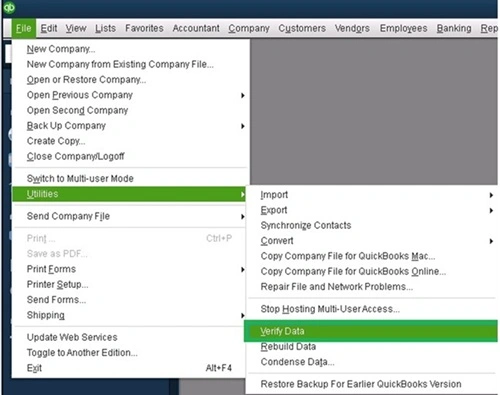
If the Verify Data tool does not find any issue, it will return a message stating, “QuickBooks detected no problem with your data“. However, if it detects any issue, then it displays the ‘rebuild is required’ message.
To rebuild the QuickBooks Company file, follow the steps below:
- Click the File menu, choose Utilities, and then click Rebuild Data.
- A dialog box appears on the screen, asking you to create a backup of the company file. Click
- Select the location where you want to save the backup file and then click
- Click OK when the “Rebuild has completed” message appears.
Now, again, click File > Utilities and choose Verify Data to verify if the issue is resolved.
If none of the repair methods work to resolve the corruption in the QuickBooks Company file, then you can try a professional QuickBooks repair tool to repair the corrupt file and restore the data. One of the pro-advisors’ favorite tools is Stellar Repair for QuickBooks. It can repair highly damaged QBW files without any file-size restrictions. Also, it maintains data integrity and precision while performing the repair operation. The tool supports repairing the QBW files of QuickBooks Pro, Premier and Enterprise solutions.
Conclusion
You can follow the above solutions to resolve the Restore failed errors in QuickBooks. The error has multiple reasons, as discussed in the post. The most common and major cause is corruption in the QuickBooks company file. You can use a professional QuickBooks repair tool to repair the QuickBooks company file in any condition. Use the reliable tool-Stellar Repair for QuickBooks, to repair QBW, irrespective of the size, state. It can help you recover corrupt QBW file data with no data loss. It helps in resolving the major issues and errors that occur due to corruption in QBW files and QBB files, including the restore failed errors.